Cluster Overview
URL: /views/cluster
The Cluster Overview must be enabled in Settings → Views → Aisle Dashboard toggle.
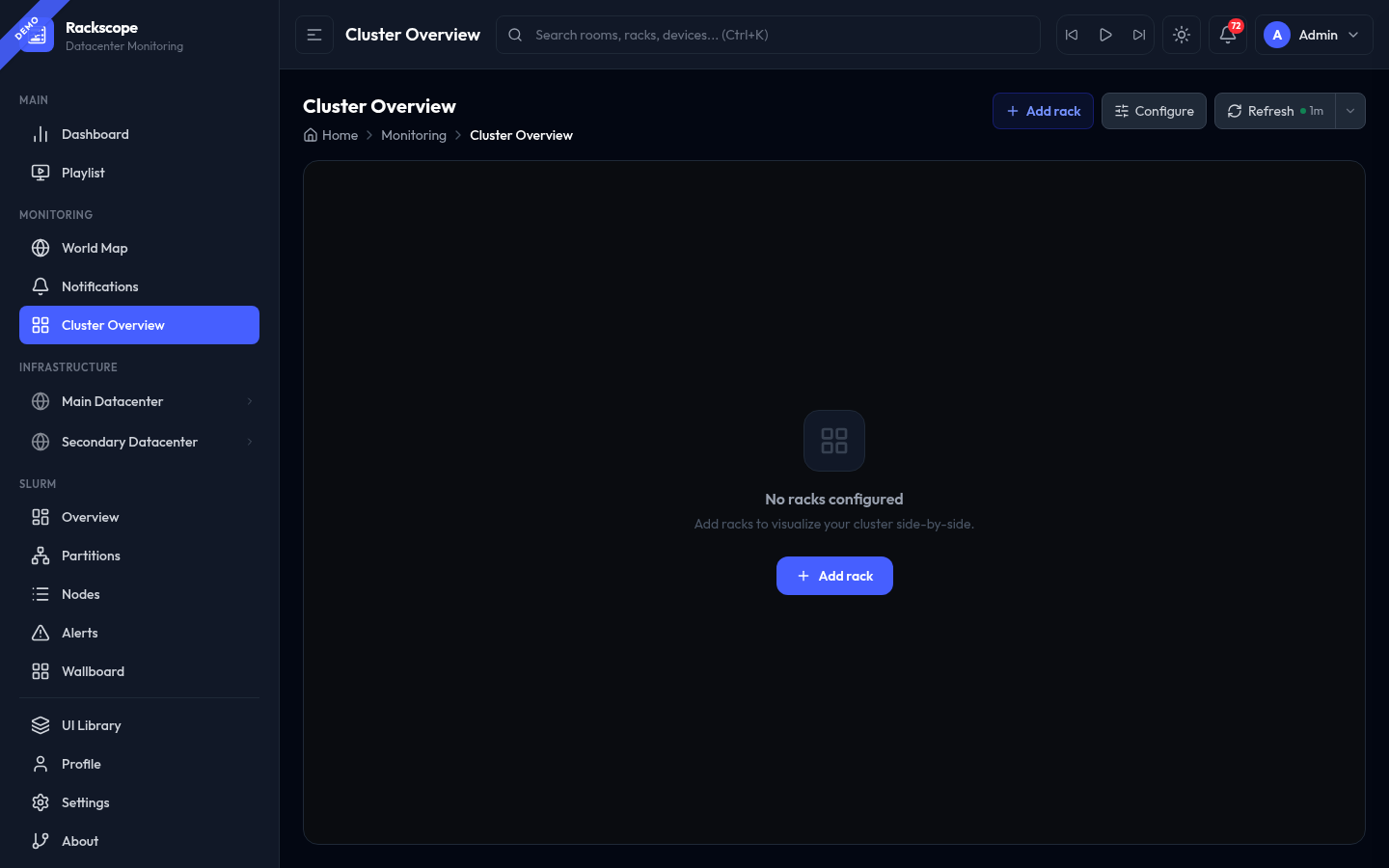
The Cluster Overview is a free-form canvas where you manually curate a cross-room rack selection. Unlike the Room View (which shows all racks in a room), this view shows only the racks you explicitly add — making it ideal for NOC wallboards, per-team dashboards, or custom capacity views.
Getting started
The view starts empty. Click + Add rack or the Add rack button in the center of the canvas to open the rack picker and select racks from any room or site.
Actions
| Button | Description |
|---|---|
| + Add rack | Open rack selector — browse by site → room → aisle |
| Configure | Open layout settings (card size, layout mode, auto-refresh) |
| Refresh | Manual refresh + auto-refresh interval selector |
Configure panel
| Option | Description |
|---|---|
| Card size | S / M / L — controls card width |
| Layout mode | Horizontal scroll · Wrap + scroll · Wrap + autosize |
| Auto-refresh | Set the refresh interval (off, 15s, 30s, 1m…) |
Layout modes
| Mode | Best for |
|---|---|
| Horizontal scroll | NOC wallboard with a wide display — all racks in a single row |
| Wrap + scroll | Multi-row grid with vertical scroll for many racks |
| Wrap + autosize | Card height auto-calculated so all racks fit the viewport without scrolling |
Rack cards
Each rack card shows the full RackElevation with:
- Actual device positions and slot grids
- Real-time health state (CRIT / WARN / OK per device / node)
- Click to navigate to the full Rack Page
Persistence
The rack selection and layout preferences are saved in localStorage under rackscope.cluster.*. They persist across page reloads but are browser-local (not shared across users).